WordPress Website Maintenance Checklist: 29 Essential Tasks

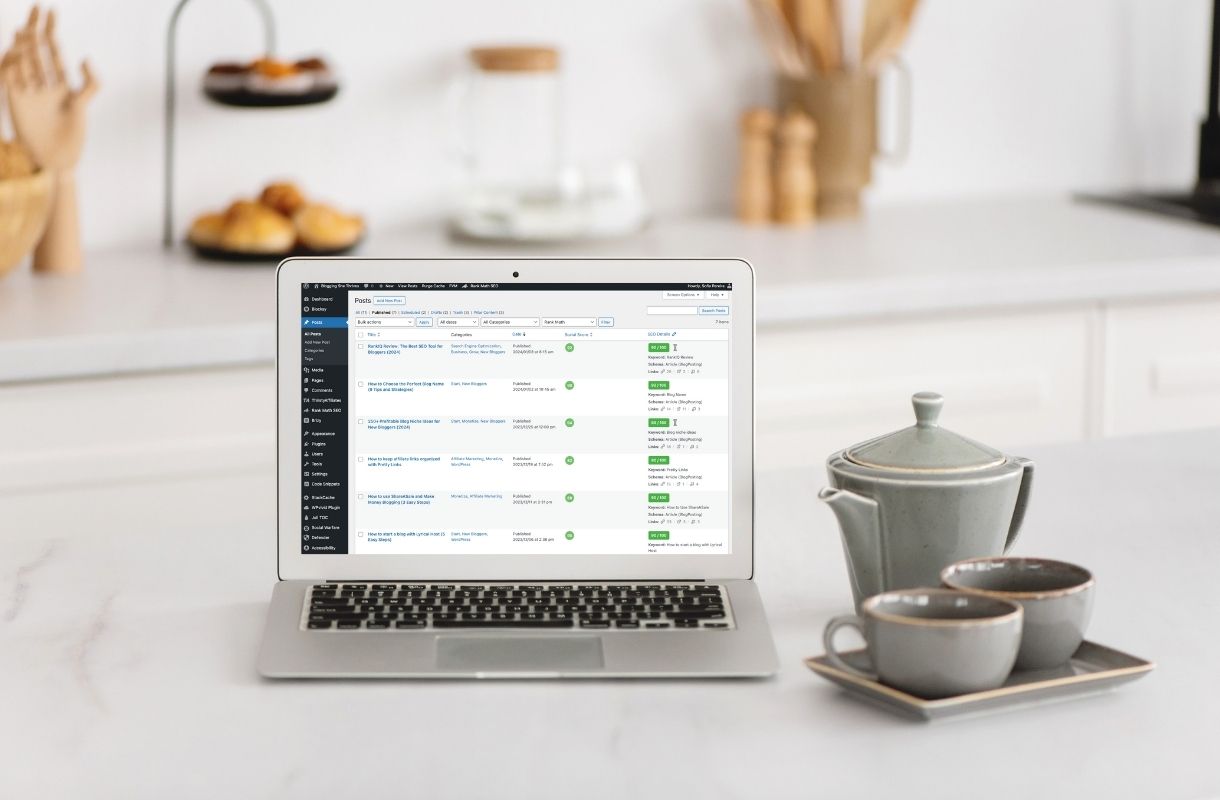
Running a self-hosted WordPress website or blog isn’t just about publishing high-value content that your audience will love.
It also involves constant updates, maintenance, and security checks to ensure that your website runs smoothly and efficiently.
That’s where this WordPress Maintenance Checklist comes in handy. By keeping track of essential tasks, you can save yourself time, money, and headaches in the long run.
In this guide, we’ll cover 29 essential tasks that you, as a WordPress website owner, should add to your to-do’s.
As a website designer managing several client websites, I like to compare website maintenance to car maintenance.
If you have your own car, you know that it needs to be cared for. You wouldn’t drive it for years without changing the oil, replacing tires, or getting regular tune-ups…
Similarly, you can’t just set up a WordPress website and let it be. A little bit of maintenance goes a long way in keeping your website functional and secure.
Let’s dive into my WordPress Maintenance Checklist and see what essential tasks you should be tackling to keep your website at its best.
Why is WordPress website maintenance important?
Many beginner users choose WordPress to build their first blog or website.
They have heard about the power of the CMS and understand that to build a profitable blog or business online, this is the obvious choice.
After all, WordPress powers over 43% of the internet and that’s for a good reason: it’s flexible, customizable, and user-friendly.
However, with great power comes great responsibility!
As your website grows, it becomes more vulnerable to security threats, software compatibility issues, and performance problems.
By regularly maintaining your WordPress website, you can prevent these issues from occurring and ensure that your site stays secure, fast, and functional for years to come.
What should you include on your WordPress Maintenance Checklist?
All WordPress websites require some level of maintenance, but it doesn’t have to be scary, time-consuming, or complicated.
Even as a new user, you’ll find that each task on this list is easily achievable and will keep your website running smoothly!
Before we dive in, let’s quickly go over some of the key elements that you should include in your website maintenance plan:
- Updates: keeping your WordPress core, themes, and plugins updated is crucial for security and performance.
- Backups: regular backups are essential to ensure that you have a restore point in case something breaks.
- Security: setting up strong passwords, using a security plugin, and keeping track of user permissions will protect your website from malicious attacks.
- Speed Optimization: optimizing your website’s speed is vital for improving user experience and search engine rankings.
- Broken Links Check: regularly scanning your website for broken links keeps your content relevant and helps your SEO efforts.
- Spam Cleanup: monitoring and removing spam comments and form submissions helps keep your website clutter-free and secure.
- Database Optimization: cleaning up your database regularly can improve website performance and prevent crashes or errors.
- Content Updates: keeping your content fresh, relevant, and up-to-date is key for engaging your audience and maintaining a professional image.
While this may seem a little too much to keep up with, I assure you, you’ll get used to it in no time.
And with the help of this step-by-step guide, you’ll have all the necessary tasks at your fingertips. You can even automate some of these with the right tools and a good hosting provider!
Now, let’s dive right in, and see what essential tasks your checklist should include for a well-maintained WordPress site.
Depending on the content you have and your level of activity, you may need to perform these tasks more or less regularly, but this list will give you a good starting point.
Weekly WordPress Maintenance Tasks
1. Navigate your site from the front end
This might seem like an obvious first step, but as content creators and website owners, we often forget to look at our website from a user’s perspective.
Regularly navigating your WordPress website from the front end will help you spot any issues with design, layout, or functionality that may have gone unnoticed on the back end.
Plugin shortcodes can break, APIs can get deactivated… a lot can happen and, often, the only way to find issues is to look (and use) the website as a regular user would.
2. Run automatic backups
Any good website hosting provider will offer daily website backups as standard.
This is an essential feature to consider when shopping around for web hosting.
Having access to frequent backups is your insurance policy against anything that may come up. Plus, you’ll feel better knowing you can always revert to a recent version of your website should anything break or any other issues arise.
For bloggers and small business owners, my preferred hosting partner is Lyrical Host. You can read more about them and get access to an exclusive discount in this post, and learn how to set up your site with them here.
3. Tackle website updates
The simplest thing you can do to keep your website secure and performing as it should be is to keep up with updates.
I recommend that you check for WordPress core updates as well as theme and plugin updates every week.
All you have to do is log in to the backend of your website and check the “Updates” panel under “Dashboard”.
4. Monitor uptime
Keeping an eye on your website’s uptime is important to ensure that it is always accessible to your audience.
Although a 100% uptime score is nearly impossible to achieve, the best hosts can deliver 99.9% and above.
To be notified of any downtime periods, you can create a free account with Uptime Robot.
5. Moderate comments
If you allow user-generated content (such as reader’s comments) on your website, you should make it a weekly practice to check for any incoming comments.
Make sure you’re reading, approving, and responding to your audience’s comments. And flagging or deleting spam comments to keep your website clean.
To save some time on this task, you can consider installing an anti-spam plugin that will do the sorting for you.
This post contains affiliate links, and I may earn a commission (at no extra cost to you) if you make a purchase after clicking one of those. I only recommend resources I use and love! Read my full disclosure.
6. Optimize your images
As a general rule, you should work on all of your images even before uploading them onto your Media Library. However, there are ways to compress them even further afterward.
While I practice what I preach, and I always optimize any images from my computer first, I also like to run an image optimization plugin on WordPress. These types of plugins will find opportunities to compress some images even further, which, in turn, will result in faster page loading times.
Monthly WordPress Maintenance Tasks
7. Check your website’s responsiveness
Test your website’s responsiveness by accessing it from different devices (mobile phones, tablets, laptops, and desktops). See how the elements on each page adjust to the various screen sizes, ensure that everything fits the screen and that all fonts remain readable.
As the number of people navigating the web from their mobile devices increases, your website or blog must look great across all screens.
This is the free app I use to check mine quickly! It instantly shows me how the site loads on dozens of screen sizes.
8. Test forms
It isn’t unusual for a contact form to get disconnected, so it is important to regularly test that these are still working as they should.
The last thing you want is for potential clients or collaboration requests to go unnoticed.
Similarly to contact forms, ensure that your signup forms are still sinking data to your chosen email service provider too (such as ConvertKit or MailerLite). I personally like to subscribe to my own newsletter every so often and check that not only is the form working flawlessly, but I actually receive its respective email automation sequence.
9. Perform a content audit and update old articles
It’s important to regularly review and update your website’s old content to ensure it is still relevant, up-to-date, helpful, and optimized for both humans and search engines.
Perform a content audit, using tools like Google Search Console, Rank Math, and RankIQ. These will help you identify the pages and posts on your blog that aren’t performing as well as they once did.
Once you have those listed, you can read through the content, and find opportunities for improvement. Making this a regular practice can boost your site’s rankings and push those pages back up!
The process can consist of doing a few small updates such as swapping images, adding new pins, increasing the whitespace between sections, and improving the user experience in general. Or it can be more significant; for example, adding several new paragraphs to an article, or changing its focus keyword to match the search intent better.
Using content optimization tools like RankIQ accelerates the process substantially because it tells you which of your posts are losing traffic and rankings, and then runs an AI SEO report that you can use to improve each post in no time!
In summary, as you see, besides publishing new content regularly, you should also make it a habit to revisit a few of your old posts every once in a while.
You can either do that manually by leveraging data from Google’s free tools, or keep track of your blog posts, content optimization efforts and updates with the help of RankIQ.
I have recently posted a tutorial as well as a review about this tool, so you can check those out. It’s super easy to use!
10. Download manual backups
The optimal frequency to download website backups will vary based on the type of website you run, how often you update your content, add functionality, or publish new blog posts.
But besides the automatic backups that a good web host should already be doing daily, I like to download full backups (of both the website’s files and database) and keep them on my own drives.
I will either download these monthly as part of my WordPress maintenance routine, or after every major change.
For Blogging She Thrives, I grabbed a great lifetime deal that WPvivid is offering to bloggers. This is an all-in-one WordPress backup plugin that I can personally recommend.
It creates automatic backups and saves them to my Google Drive account, lets me download manual backups whenever necessary, and allows me to roll back plugin updates when needed.
With a full backup file at hand, I can easily restore the site if I have to. It’s a great plugin to have!
Besides its main functionality, I know it has even more features, such as image optimization. So, essentially, you can save on a bunch of plugins because this one does so much! Check it out here.
Other backup and restore plugins that I have tested and stand behind, include the All-in-One WP Migration and the UpDraft Plus plugins. Both of these offer limited free versions with optional paid upgrades.
11. Review WordPress security logs
Despite all the power WordPress gives you, it is known to be a target of hackers and malicious activity.
Make sure you have installed a reputable security plugin and keep an eye out for any unwanted activity.
If you use Wordfence, you can opt in to receive their email alerts and be notified of security vulnerabilities.
Quarterly WordPress Maintenance Tasks
12. Run a broken link check
Remember to check for broken links and 404 errors at least once per quarter (or more often if you can – especially if you produce a lot of content).
Most people will recommend that you install a plugin for this.
I, however, tend to avoid adding extra plugins to any WordPress site, unless those are absolutely necessary. A lower number of plugins can avoid incompatibilities, performance issues, and security breaches!
That’s why I suggest that you put this specific task on your agenda instead of automating it, and run a quick test off-site every few months or so.
I use https://brokenlinkcheck.com/ and https://ahrefs.com/broken-link-checker for this (both free tools).
After the reports run, I’ll tend to any links that need replacement.
If you do this consistently and don’t let broken links and 404s add up, the entire process shouldn’t take you longer than a few minutes each time!
Besides boosting the user experience, this will prevent search console errors too.
13. Create redirects
When you do find broken pages and 404 errors on your website, whether as a result of deleted pages or updated URLs, it is important to clean them up with redirects. Tending to these periodically will prevent crawl errors and enhance the UX.
Rank Math can easily make this happen for you.
While I prefer creating any necessary 301 or 410 redirects myself, this powerful SEO plugin gives you the option to automate the task.
301 redirects apply to pages or posts that have moved to a different URL, and 410 redirects would be used for pages or posts that have been deleted without a suitable replacement. These redirects tackle broken hyperlinks within your own website.
However, the tools I mentioned above will also provide you with information about external links in your content that now point to 404 pages on third-party sites. This gives you an opportunity to update your content and replace those mentions with references to other active sources.
14. Run a site speed test
Site speed has a major impact on user experience. Besides, it’s also an SEO factor that has become part of your Google rankings.
Needless to say, you should be performing regular site speed tests and tackling any issues you may find.
If your site’s performance needs some care, and you want to DIY it, I recommend checking out this comprehensive program.
In this website speed course, you’ll learn how to keep your website optimized and how to test its performance with a reliable and easy-to-understand tool (spoiler alert: it’s not Google Page Speed Insights).
The course is super easy to follow, even if you have no technical knowledge!
15. Clean up the media library
Like most bloggers, you have probably uploaded images to your media library that you never ended up using.
When you’re in content creation mode, it’s easy to get distracted with choosing the perfect image for your post and forget to clean up your media library afterward.
But, as a best practice, remember to go through it sporadically, and delete any unused images or files.
This will help keep your website more organized and improve its overall size and performance.
Needless to say, DO NOT delete any of the images or documents you are currently using!
16. Analyze your traffic and SEO performance
This is where Google Search Console and Google Analytics data come in.
These are free tools that you can easily install manually with a few lines of code or automatically, with the help of an SEO plugin like Rank Math.
Although you can set and forget them, it is good practice to check for any errors or penalties on Google Search Console, and monitor your traffic on Google Analytics.
This will help you resolve any problems that might have gone unnoticed and map out your future content!
Pin this post for later…
17. Check your website’s spam score
Here’s another important SEO metric you can keep an eye out for.
The Spam Score Checker is a tool created by Moz in 2015. It scans your website and compares its features to websites that have been penalized by Google.
You can run an analysis on this page. It’s free!
If you find that your website has a high spam score, you may eventually be penalized and drop your rankings.
A few ways you can reduce your site’s spam score include:
- installing an SSL certificate;
- building good backlinks from reputable sources;
- diversifying your backlink profile;
- working on your EEAT and producing original content;
- implementing anti-spam measures; and
- avoiding black-hat SEO tactics.
18. Review affiliate links
It isn’t uncommon for brands to occasionally update their affiliate links structure.
While it doesn’t happen all that often either, make it a part of your to-dos to review that your affiliate links are still valid and that any promo codes work correctly.
I highly recommend that you use an affiliate management tool to keep all your links organized and easily update them when needed.
I like and use both Pretty Links and Thirsty Affiliates on different websites. The free versions of these plugins work great!
After you’re done with this post, go ahead and learn more about setting up Pretty Links here.
But essentially, what I do as often as I can, is clicking my own affiliate links and make sure they are not only pointing my readers to the correct pages, but also tracking my unique affiliate ID.
If that’s not the case, I’ll either log in to my affiliate dashboard to see if there are any notifications, or get in touch with the affiliate manager of the program.
19. Check embedded content
If you have any embedded elements on your website, check through them and make sure that everything still works and shows correctly on different devices.
These may be things like MailerLite or ConvertKit signup forms, ThriveCart or SendOwl checkouts, contact forms from external sources, booking calendars, promo banners, or social media feeds, for example.
Yearly WordPress Maintenance Tasks
20. Review WordPress users
Head to “Users” in your WordPress dashboard and delete anyone who doesn’t need access to your website.
During the year, you might have had some people help you here and there, such as your host’s support team getting into the website to fix something for you.
If those users are no longer needed, keep your website clean by deleting them.
Pro tip: I often use temporary logins to avoid creating unnecessary user roles.
21. Audit WordPress plugins
Each plugin you install is a potential threat to your website’s security.
With so many developers contributing to WordPress’ growth every year, you should keep an eye on your website’s software.
Head over to your plugins list, delete any unused ones, and check the rest to ensure that the developers haven’t abandoned them.
If any one of your plugins is no longer compatible with the current version of WordPress or hasn’t been updated in a long time, it might be a good idea to look for an alternative.
22. Update your credentials
Updating your admin credentials is a basic security tip.
But seriously, make sure you remember to change your WordPress passwords regularly (once a year as a bare minimum). Choose unique passwords, and, ideally, set up 2-factor authentication.
These easy-to-do’s make it harder for any malicious agents to access your admin dashboard and help boost website security.
23. Check premium licenses
If you have any premium plugins or themes on your WordPress website, make sure to check that their licenses are still valid.
Some developers require annual renewals for you to continue receiving updates and support.
Don’t risk compromising your website’s security and functionality by using outdated or invalid licenses!
24. Optimize the database
As your website grows, and every time you install or uninstall new themes and plugins, these may be keeping residual data on your website.
Likewise, pages and posts’ revisions can quickly add up as well!
In time, your database may be filled with clutter that you don’t need. I like to periodically check and optimize my WordPress database to remove any unwanted leftovers.
This is the plugin I use, and WP Sweep is another excellent choice.
Do note that many of the plugins I have been mentioning in this post are there to help you perform certain tasks every once in a while. You do not need to keep them on your website!
Once you’re done with the tasks each of them help you complete, simply deactivate and delete them. You can bring them back the next time you decide to tackle the items on this list.
25. Review static pages
Take some time to revisit your website’s static pages, such as the homepage, about, services, and contact page.
Read through them and ensure that all information, pricing, and images are up-to-date. Take a note of any necessary changes as you go.
Besides checking that the content is still relevant, you’ll also be reviewing the user experience those pages offer.
This will help keep your website looking professional and relevant.
26. Review email sequences
I know, this one doesn’t exactly qualify as a site maintenance task… but it still relates to your website nonetheless!
If you have set up automated email sequences that fire every time a new user signs up for your newsletter, it’s a good idea to review that those are still working as they should and that the information is accurate.
If not, make any necessary changes and test the sequences once again to ensure everything functions correctly.
I wish I could count the number of automated emails I get from other bloggers referring to a “recent post I need to read” or “this article they wrote last week” to then find that the post is actually from 2017… not a huge deal if it’s an evergreen piece of content, or they update it regularly, but… I’d just avoid mentioning dates on automatic emails altogether.
If you haven’t started your email list yet, you should!
I must admit that I’m not the best at emailing every week, as most bloggers do.
But, as the recipient, I’m also annoyed if I get too many emails. So I guess it’s not too bad that I keep mine sporadic.
In any case, if you haven’t found an email marketing provider yet, I encourage you to take a look at ConvertKit, MailerLite, or Flodesk. Email marketing can be a powerful part of your business and secure additional revenue. There’s no reason not to get started!
27. Consider upgrading your hosting plan
A slow website can be a major turn-off for visitors and potential customers.
If your website is experiencing frequent downtime or sluggish performance, it might be time to upgrade your hosting plan.
This can significantly improve your website’s speed and overall user experience.
These are the companies I’d recommend most bloggers to consider:
- Lyrical Host (use the promo code BLOG to get 10% off)
- BigScoots (use the promo code SOFIA25 to get 25% off)
28. Update your legal pages
As a standard, you should review your website’s legal documents at least once every year.
Make sure that everything is still accurate and, if nothing else changes, just update the “last updated” date accordingly.
If you don’t have these yet, you should…
So here’s another thing to add to your to-do list: make sure your blog is legally protected, ASAP!
You can grab templates created just for bloggers by one of my blogging friends:
Both Amira and Lucrezia are very successful bloggers themselves and experienced lawyers. So you can trust that you’ll be in good hands!
I also suggest that you take this FREE legal course for bloggers and online entrepreneurs, to better understand what it takes to keep your blog compliant!
29. Update the copyright year
Following the above: make sure you change the year in your website’s footer to reflect the new year.
You can keep the year of your website’s first launch and add the current year next to it (i.e. © Website Name 20XX-20XX).
Wrapping Up
Congratulations, you’ve reached the end of this checklist!
By now, your WordPress website should be in tip-top shape and ready to rock.
However, please keep in mind that maintaining a website is an ongoing process, so it’s important to regularly check and tackle these tasks.
As a final tip – if you find yourself struggling with any of these maintenance tasks, don’t hesitate to ask your web host’s support team for further advice.
It’s better to address any issues early on rather than let them escalate into bigger problems.
Remember, performing regular maintenance will:
- avoid security concerns,
- help you rank higher on search engines,
- leave a great impression on your visitors, and
- help your site stand out from the competition.
So take the time to revisit this checklist regularly and keep your WordPress website running smoothly.
Be sure to bookmark this page or download the printable checklist I’ve prepared for you!
Would you add anything else?
Please let me know in the comments, below. 🙂