

How to Avoid Spam Comments on WordPress (5 Effective Ways)


Spam is the worst, isn’t it? It feels like spam comments on WordPress, social media messages, and even spam emails are only increasing.
For us bloggers, dealing with spam isn’t only a waste of time, it’s also so annoying! The unfortunate reality is that the more traffic your website gets, the more likely it is to be targeted by spammers (both human and bots).
However, especially as a new blogger, you’ll probably get excited when you see the little comment notification icon on your WordPress dashboard.
You’re happy that people are enjoying and interacting with your content… Until you notice it’s just spam. What a bummer!
The good news it that there are several effective strategies to stop WordPress spam comments.
Today, I’m sharing 5 of the best ways to avoid spam so that you can get back to blogging while keeping your website in good shape.
Here’s what we’ll discuss in this post:
- What spam comments are and how to recognize them;
- Why you should care; and
- 5 strategies to prevent spam on WordPress.
What are spam comments?
Spam comments are irrelevant messages that either automated bots or people leave on blog posts. Often, the intention is promoting their products and services, spreading malicious links, or manipulating search engine rankings by building a backlink profile.
Getting spam comments isn’t new for bloggers on WordPress. But monitoring and deleting them promptly is crucial for maintaining a safe environment for both you and your readers.
Why are people leaving spam comments on your blog?
People who leave spam comments are usually invested in building backlinks to their websites. This is an attempt to get those sites to rank higher in search.
However, that’s a black-hat SEO strategy that will only offer short-lived results (if any at all, these days).
You see, by default, WordPress adds a website field to the comments form, and most spammers use it to their advantage.
Some bloggers turn that off completely, making it less likely to get fake comments.
Whether you decide to do the same or not, is really up to you.
I have personally left the website field on my blog because I’m curious like a cat. 😺 However, my comments are set to be approved manually, so there’s little chance for a spam comment to go live.
We’ll cover these and other effective solutions later in this post!
Pin this for later 🙂
How to recognize a spam comment?
The first red flags to pay attention to when it comes to monitoring spam are:
- the commenter’s name,
- the link(s) they’ve included, and
- the content of the comment itself.
These days, it has become harder to distinguish legitimate comments from spammy ones.
You don’t want to delete all the comments that you get, but you don’t want to risk it either… I get it!
Spammers have grown smarter, and some spam comments can be difficult to spot.
Here are a few things to consider:
- Does the author’s name sound real? Even if it’s a name that doesn’t exist in your language, does it sound like an actual human name?
- Is the comment relevant to the blog post it’s been published to, or is the commenter talking about something completely unrelated?
- Do the email address and URL provided look legitimate?
- Are there several links within the comment itself (especially dodgy looking or irrelevant ones)?
Ask yourself these questions and analyze all submissions before allowing any new comments to go live on your blog.
Why should you care about spam on your blog?
Google doesn’t only penalize spammers! It will also penalize your blog if you don’t care about monitoring spam!
Allowing spam comments on your blog can:
- Negatively affect your rankings on search engine results pages;
- Slow down your website (this goes for all comments but, obviously, if they are spam, there’s no good reason to keep them); and
- Expose your audience to scams and viruses, leading to a lack of trust.
With that in mind, let’s review some of the most effective ways to stop spammers from commenting on your self-hosted WordPress blog.
5 Ways to avoid spam comments on your blog
There are various beginner-friendly approaches to avoiding spam comments on your WordPress blog. Let’s review a few of the options you could consider:
1. Turn off comments completely
The first option you might want to consider if your website is attacked by spammers a lot is rather simple. Should you disable the comments section altogether?
The number of bloggers who don’t allow comments is increasing. This is certainly a new trend that wasn’t as popular back in the day.
However, today, it isn’t as common for readers to leave comments on blog posts, either. That has changed as the internet evolved!
People are busy and will rarely read your blog posts for leisure or because they think you’re cool.
More often than not, people visit blogs to learn something new. Whether it’s comparing the latest smartphone features or following a guide on how to make sourdough bread, it’s about them, not you.
Readers want to find the information they need as soon as possible and then leave.
That’s just some food for thought, if you’re considering turning off comments on your website completely. There’s no right or wrong.
But, of course, there are plenty of benefits to accepting comments too!
Good comments can increase the reader’s engagement, expand the article’s topic, and the right type of comment can even give a little boost to your on-page SEO efforts. That’s not huge, but something is something, right?
They are also a great way to get feedback from your audience.
Some may point out a few things you could do to improve your post, or even give you ideas for future blog posts.
Still, some bloggers choose to take the conversation on to social media instead.
If you build a strong following and host your own community, your audience can still interact with you and ask any questions there.
At the end of the day, this is a very personal consideration. Only you can decide whether you should turn your blog commenting off.
In any case, if you are looking to disable comments on your WordPress website, all you have to do is navigate to Settings and click on Discussion Settings, from your dashboard.
Once you’re there, look for an option that says, “Allow people to submit comments on new posts”, uncheck it and hit the save changes button.

The new settings will apply to future posts only. If you would like to remove comments from previously published content as well, follow these steps next:
- Navigate to “Posts” and click “All Posts”;
- Bulk select every post in which you want to turn the commenting system off, select “Edit” from the dropdown above the posts’ list and click “Apply”;
- You’ll then see a “Comments” section under “Author” where you’ll have to select “Do not allow” from the new dropdown menu. Then click “Update” to save the changes.
After following both sets of instructions, you’ll be done! You have effectively removed the commenting system from your blog.
2. Remove the website field
Another option you can consider, is to remove the website field from your commenting system.
Since most spammers are trying to build links back to their websites, this simple trick can considerably reduce the number of spam comments you need to moderate.
Here’s how:
Option 1: Remove the website field from the Theme Customizer
Many WordPress themes will have that as an option in their customizer. You can simply toggle it off.
If you want to remove the website field from your blog’s comment section, I recommend that you first check whether your theme has the option built in so that you avoid adding code manually or installing (yet another) plugin.
Every theme will have slightly different options, but here’s where you’ll find options to remove the website field on two of the most popular themes, and the ones I currently use on my sites:
Blocky
From your WordPress Dashboard, navigate to Appearance and click Customize. You’ll find the toggle under “Post Types” > “Single Post” > “Comments” > “Website Input Field”.
Kadence WP
From your WordPress Dashboard, navigate to Appearance and click Customize. Click on “General”, then “Comments”, and toggle on “Remove Comments Website field”.
Option 2: Remove the website field with a plug-in
If your theme doesn’t give you the option to remove the website URL field from the WordPress comments section, you can choose from an array of plugins that will do the trick.
The one I recommend is the Code Snippets plugin by WPCode.
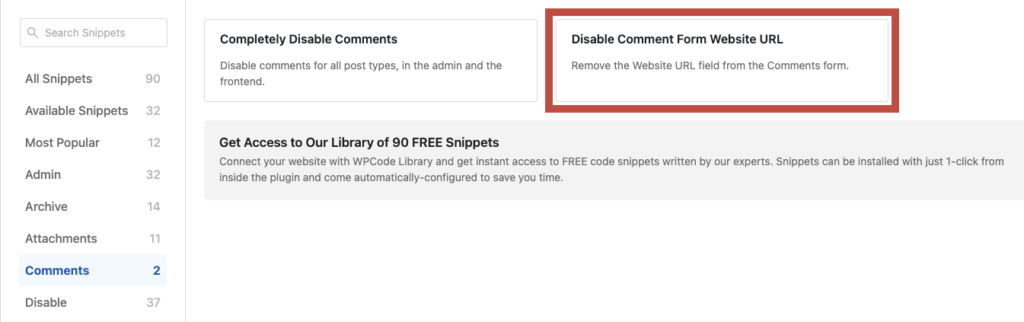
It is the code inserted plugin I use to add CSS, PHP, and other types of additional code to the websites I create. And it comes with plenty of built-in snippets that you can activate, including one that disables the website URL from the WordPress comment form.
The benefit of using this plugin specifically is that you can make use of it for many other things, like adding code to your website’s header and footer, for example.
Alternatively, if removing the website field is all that you need, then you can consider using a simpler plugin just for that purpose, such as the URL Field Remover From Comment Box.
Removing the website URL field from your commenting form can be an effective way of decreasing the amount of spam comments you get. That’s simply because most spammers are only looking for an easy backlink.
However, it’s important to understand that this doesn’t fully prevent spam comments, so I’d still recommend that you moderate them manually.
3. Install an anti-spam plugin
Another option you can consider is installing an anti-spam plugin.
There are plugins for everything, right?
Anti-spam plugins are common among content creators and effective in preventing spam comments on WordPress.
Some of the most used anti-spam plugins are:
These plugins include free versions; you will find them all in the plugin’s library.
Some will also give you the ability to remove the website URL field (discussed above), so you can kill two birds with one stone.
From your WordPress dashboard, navigate to “Plugins”, click on “Add New Plugin”, and search for your preferred option.
The installation is pretty straightforward, and each one of these includes detailed instructions.
4. Use an alternative comment system
Your blog will use WordPress’ built-in commenting system by default. I have personally decided to keep that on my sites.
However, another trick that can help combat WordPress comment spam is installing a third-party commenting solution, such as Disqus or Facebook comments. You can easily replace the native commenting functionality with one of your choosing.
Disqus Comments
Disqus is one of the most popular commenting systems used by tens of thousands of bloggers worldwide. It offers a user-friendly WordPress plugin that you can easily install on your website. And it comes with several advantages:
- Doesn’t require you to use code, and you won’t lose any of your previously approved comments;
- Sends automatic email notifications to your audience when they get an answer; and
- It offers an integrated anti-spam filter powered by the Akismet plugin that I suggested above.
Facebook Comments
Facebook Comments is a social plugin that allows your blog’s readers to leave comments using their Facebook account credentials, while making it easy for you to moderate them as well.
Since users know their comments are automatically linked to their Facebook profile, they are less likely to leave spam.
5. Review your discussion settings on WordPress
Before we wrap up, I want to highlight one more strategy for avoiding spam as a WordPress user: tweaking your blog’s discussion settings.
That’s right! WordPress allows you to change how comments are handled, so by applying a few simple changes, you can significantly reduce the chances of spam comments appearing under your blog posts.
In summary, when it comes to minimizing spam, here’s what I recommend:
- Disable anonymous comments: Make the name and email fields required;
- Enable comment moderation: Check the box that says “Comments must be manually approved” or, at least, the one that says “Comment author must have a previously approved comment”;
- Monitor external links: Hold a comment for moderation if it contains 2 or more links – or set any amount that you see fit to limit the number of links that users can include in their comments;
- Filter all comments: If you notice any trends in the types of spam comments you receive, consider banning specific words or IP addresses.
You can also close comments after a certain number of days have passed since a new post has been published. While this won’t prevent spam in its entirety, it will make it significantly easier for you to manage incoming user-generated content.
Wrapping up
As you can see, there are plenty of different ways to combat spammers on WordPress, from installing anti-spam plugins to tweaking the discussion settings you have in place.
I hope one of these tips will prove useful and help you manage and avoid spam on your blog!
And remember, getting rid of spam is critical for your blog’s success! It will help you keep your WordPress site healthy and maintain your reputation with your audience and search engines.
Are you planning to implement any one of these solutions? Please let me know in the comments!


Hello Sofia
Super helpful post – in fact I’ve binged so much of your fantastic and very informative content. Just thought I’d say this non-spammy comment (ironically lol) on a post related to spam comments 🙂
ahah Thank you so much Sita!